
Add a panel
Dieser Inhalt ist noch nicht in deiner Sprache verfügbar.
Adding a panel is done from Home Assistant, with no command line. There are two routes, and both end with the panel appearing as a device.
Whichever you take, work through Prepare the panel first.
Over the network
Section titled “Over the network”For a panel that is already on your network. Go to Settings, Devices and services, add Panel Assistant, and give it the panel’s address. The integration checks what is on the panel, asks you to approve a debugging prompt on the panel’s own screen if required, installs the panel app, starts it, and only then creates the device. If the panel is already running the app, it adopts it instead, which is quicker.
Over USB
Section titled “Over USB”For a panel that is still in the box, or whose vendor software makes network access awkward. Plug it into your laptop and install from your browser over the USB cable. Your browser stays connected to Home Assistant, which supplies the verified release; the panel does not need network ADB. It is started from the Panel Assistant page in the sidebar and needs a Chromium-based browser. See Install over USB.
What the installer protects
Section titled “What the installer protects”Both routes check the panel before changing anything. The network route adopts an existing app rather than reinstalling it. USB does not overwrite a different existing installation; if the exact selected build is already installed, it finishes that build’s setup. An interrupted USB install can be retried with the same release, checking what completed before carrying on. For backups before an app update, see Updates and recovery.
After it is installed
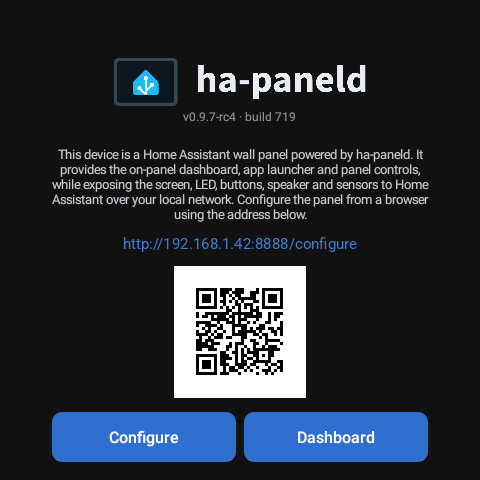
Section titled “After it is installed”The panel appears as a device with a status sensor and diagnostics, and on the Panel Assistant page in the sidebar. The panel also serves its own status page on your network on port 8888, which is where you point it at a dashboard. Until then, the panel’s own screen shows that address, with a QR code and buttons to configure it or open the dashboard.
Continue with Connect a panel.
Wir Home Assistant und alles, was die Open Home Foundation tut.
Zuletzt aktualisiert:
Kommentare
Die Kommentare werden in der Diskussion zu dieser Seite auf GitHub gespeichert. Wenn du sie lädst, verbindet sich dein Browser mit GitHub. Dieser Browser merkt sich deine Wahl und lädt Kommentare auf anderen Seiten, sobald du zu ihnen scrollst.
Ohne GitHub-Konto kommentieren