
The built-in renderer
The panel app draws your Home Assistant dashboard in its own WebView instead of handing it to a separate dashboard app. That lets it return to the dashboard quickly after the app restarts: it can reopen the last dashboard Home Assistant verified for the same server, account and home dashboard setting while it checks the current dashboard list in the background. If Home Assistant reports that the dashboard was removed or the account default changed, the panel moves to the current choice.
Once the dashboard is running, the panel app can detect a stalled connection, release accumulated WebView memory and contain renderer crashes. The built-in connection is also what makes dashboard entity filtering possible. The panel stays a single-app appliance, with one app to install and update.
The built-in renderer is by far the preferred way to show your dashboard, and the one guided setup chooses. A separate dashboard app is still supported as an option, for example when a panel needs more than one Home Assistant server, Assist voice control or native notifications (see Limits).
Startup and recovery
Section titled “Startup and recovery”The renderer uses Home Assistant’s documented ?external_auth=1 interface, so the panel app can tell when the dashboard has connected rather than treating the page as a black box. It:
- Reopens the last verified dashboard after an app restart while it refreshes Home Assistant’s dashboard list in the background. A short compatibility check still runs first. The remembered dashboard is tied to the Home Assistant server, account and configured dashboard, and a dashboard or dashboard tab you have set explicitly always wins.
- Freezes the page while the screen is off and resumes it on wake, saving roughly 70% of renderer CPU overnight.
- Reloads a dashboard that opened but never connected. Retries slow down after repeated failures, and the panel shows a clear Reconnecting to Home Assistant… screen instead of a browser error page.
- Retries recoverable checks with increasing delays. A login that is permanently rejected stops the retries and shows instructions for Browser sign-in. An unsupported Home Assistant version or an incompatible WebView names the update that is needed and waits for it.
- Releases accumulated memory with invisible reloads while the screen is off.
- Contains and rate-limits renderer crashes. A page that keeps crashing falls back to the admin launcher instead of restarting all night.
- When Home Assistant announces that it is stopping, or goes offline, shows a native notice on the panel and clears it only once Home Assistant is demonstrably back.
Pull down from the very top edge of the screen to refresh, or pull twice for a full reload. The renderer also supports an optional idle return to the home dashboard, autoplay of camera streams, and HTTPS with a private certificate authority installed by the user. Hide Android system bars gives an edge-to-edge dashboard; swipe from a screen edge to show the bars again. On panels using the app’s software navigation bar, Dashboard brings the renderer to the front without reloading it, and Reload is a separate recovery action.
Zoom (%) adjusts the size the renderer draws the dashboard at, with 100% as the default. The renderer adds an App settings entry to the Home Assistant sidebar that opens the panel’s configuration page. On first run it hides the docked sidebar and keeps the connection alive while idle; you can open the sidebar or change these defaults later. The separate Hide Home Assistant navigation (native) option asks the frontend to remove its navigation while native kiosk mode is active. If the dashboard is simply the wrong size, see display sizing.
Requirements and compatibility
Section titled “Requirements and compatibility”The built-in renderer needs both:
- Home Assistant 2026.4.2 or newer; and
- an Android System WebView that supports the secure WebMessage listener used by Home Assistant’s native host interface.
Most people only need a current Android System WebView. The panel app checks for the WebView capability and verifies that Home Assistant is compatible before it loads the dashboard.
If the panel shows Home Assistant upgrade required, upgrade Home Assistant and select Retry. Nothing on the panel can substitute for that.
If it shows This panel’s web viewer is too old, the screen tells you what this particular panel can do about it, because that differs by model and by how the panel is set up:
- The panel can repair itself. When the hardware profile pins a known-good Android System WebView and the panel app is permitted to install it, the screen offers Update the web viewer. Select it and the panel downloads and installs that version, then the app restarts once to use it. If the screen comes back afterwards, the pinned version did not fix the fault and the manual routes still apply.
- The panel cannot, and the screen says why. Once the app has confirmed that automatic repair is unavailable, it names one of three reasons, and the update has to be done by hand before you select Retry: a known-good version is pinned but the app is not permitted to install it; no known-good version is pinned for this panel; or the panel takes its Android System WebView from an app store, which will replace it more safely than the panel app would. Reinstalling the same version repairs a damaged one.
How the WebView is updated by hand depends on the panel: some take it from Google Play, others only from a vendor firmware update or a manually installed build. See updating the WebView.
The built-in renderer never falls back to a less isolated bridge. Another renderer may help when Home Assistant itself cannot be upgraded, but any dashboard app on the panel uses the same system WebView, so none can get around an obsolete one.
Setting it up
Section titled “Setting it up”On a new or reset panel, open http://<panel>:8888/setup from a laptop or phone, or select Set up on the panel itself. The guided setup chooses the renderer, signs in to Home Assistant, selects the account default, a dashboard or a specific dashboard tab, and asks about the entity filter before the first dashboard loads. Authorisation happens in the administrator’s browser, so no credentials are typed on the panel.
On a panel that is already set up, open the Configure page on port 8888. Under Home Assistant connection, enter the Home Assistant URL and choose Browser sign-in, then select Built-in renderer as the Dashboard app.
For unattended setup from a computer, replace the example panel address and Home Assistant details in this command, which needs no checkout of the repository:
# First create an owner-only password file as shown in the linked provisioning guide.curl -fsSL https://raw.githubusercontent.com/panel-assistant/android/main/scripts/install.sh | \ bash -s -- --provision 192.168.1.50:5555 --builtin \ --ha-url https://homeassistant.example.com --ha-user your-user --ha-pass-file ha-password.txtThe password never reaches the panel, because the login happens on your computer and the panel receives a revocable refresh token. A long-lived access token works too: use --ha-token-file ha-token.txt instead of --ha-user and --ha-pass-file. The command-line install page describes creating credential files safely, and the limits of the trusted network connection to the panel. The literal --ha-pass and --ha-token options also work, but they expose the value in the shell command and the process list.
A token or username and password is an advanced route for automated installs. Interactive installations should use Browser sign-in.
Dashboard appearance and the Android lock
Section titled “Dashboard appearance and the Android lock”Advanced settings on the Configure page include three independent controls, each affecting a different layer:
| Configure option | What it changes | What it does not change |
|---|---|---|
| Hide Home Assistant navigation (native) (on by default) | Once Home Assistant connects, asks its frontend to hide its navigation. Built-in renderer only. | Does not lock Android, hide Android’s system bars, or inject or change dashboard CSS. If Home Assistant rejects or does not support the request, the dashboard is left unchanged. |
| Hide Android system bars (on by default) | Hides Android’s status and navigation bars for an edge-to-edge dashboard. Swipe from an edge to show them. Built-in renderer only. | Does not stop someone leaving the app, and does not hide Home Assistant’s own menus and navigation. |
| Lock Android to dashboard (experimental) (off by default) | With root, hides Android’s system bars and returns to the selected dashboard within about three seconds when another app or Recents opens. This deters casual use; it is not a security boundary against a determined person. | Does not change how the dashboard looks. Has no effect without root. After a reboot there is a 60-second unlocked window for recovery, then the saved lock applies again. |
For a cleaner dashboard, start with Hide Home Assistant navigation (native), Hide Android system bars, or both. Turn on Lock Android to dashboard only when you need to discourage casual escape from the app, and only after testing the ways out: the Configure page, the Home Assistant switch, adb, seven rapid taps in the top-left corner, or the unlocked window after a reboot.
Entity filter
Section titled “Entity filter”The filter applies only to the built-in renderer. It changes the frontend’s subscription to Home Assistant, so Home Assistant filters the states before it serialises them and sends them to the panel. Other dashboard apps are unaffected. Performance explains why this is usually the biggest improvement on a slow panel.
Automatic workflow
Section titled “Automatic workflow”- On port 8888, open Configure, then Dashboard, select Built-in renderer, and turn on Entity filtering.
- Open the Entities tab and select Scan dashboard now.
- Visit every dashboard tab and use its controls, pop-ups and conditional content, so the panel can observe what they depend on while running.
- Review the current, suggested and excluded lists. Pin entities that custom cards or templates use indirectly, and resolve any entity-filter checks shown above the tables.
- Select Apply policy set when the candidate is ready. The panel shows the old and new entity counts before asking you to confirm, then reloads the dashboard with the filtered subscription.
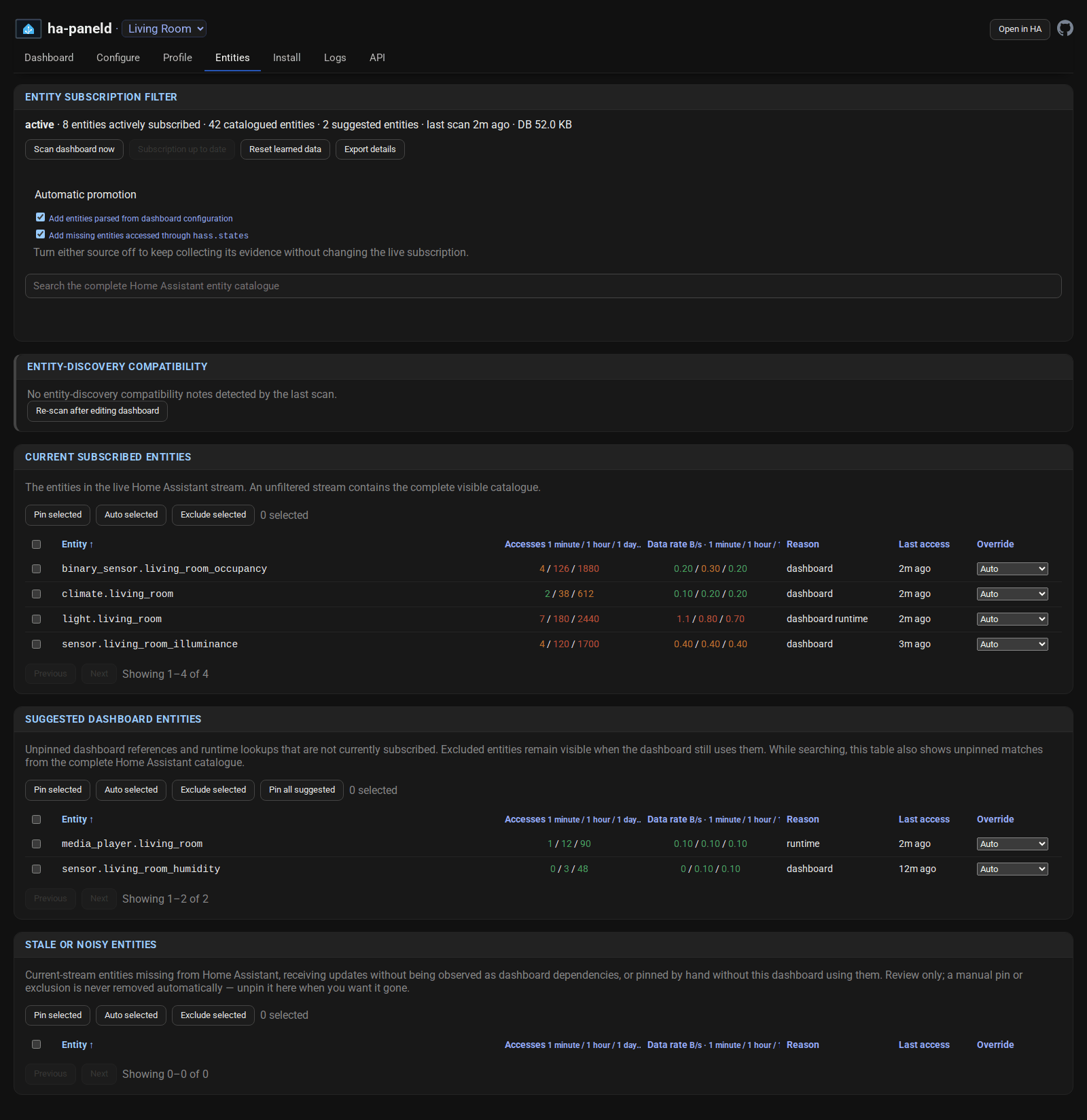
The Entities page explains why each entity was found, records your manual pins and exclusions, and keeps broad or dynamic rules it recognises visible until you fix them or choose explicitly how to proceed. Behaviour it does not recognise can still exist, so test every dashboard tab after turning the filter on. If anything is missing, turn off Entity filtering on the Configure page and reload before revising the candidate.
When the panel holds the dashboard
Section titled “When the panel holds the dashboard”With automatic filtering on, the built-in renderer never opens Home Assistant unfiltered. Until a scan has produced a set it can vouch for, the panel shows a native hold screen instead of the dashboard, for one of three reasons. While the first scan is running or has failed, the panel retries it on a widening schedule, because the usual cause is that Home Assistant is not up yet. If Home Assistant rejects the panel’s credential, the hold screen names the sign-in. If the scan finished but found a rule it cannot bound, such as a dashboard generated by a strategy or an unbounded selector, the hold screen asks for a decision: ignore the flagged rules and continue, turn the filter off, or review them on the Entities page. That decision can be made at the panel or from any device on the network at http://<panel>:8888/entities, and the hold screen shows that address.
A hold that is waiting on a decision is settled, so the panel does not rescan the catalogue while it waits. It asks Home Assistant whether the dashboard has changed five minutes after the hold settles and then at most hourly, and rescans only when the dashboard’s configuration or the account default has actually changed, when the decision is made, or when the panel’s Home Assistant settings change. GET /api/v1/dashboard/entities/sync reports the cause in hold_reason (synchronizing, synchronization, authentication or decision) and sets resync_suspended while a decision is the only thing outstanding.
An update of the panel app can make the panel re-check a dashboard it was already filtering. If that re-check flags a rule on a dashboard the panel was already running a filter on, the panel records the rule as ignored, restores the entity set it was running, and opens the dashboard rather than holding it; the rule stays visible on the Entities page and can be re-enabled there. This applies only to a re-check caused by an update, only when a previously accepted filter exists, and only when the restored set is not empty. Rules the panel can never ignore, such as a dashboard too large to analyse, still hold the renderer.
Templates and manual pins
Section titled “Templates and manual pins”The panel app does not run dashboard templates, so it cannot know which entities a template returns, and it does not guess. It treats the two kinds of entity a template touches differently.
Entities a template only reads, such as a state tested in a condition, need nothing. Home Assistant renders the template itself and sends the panel the result over a separate subscription the filter does not touch. Those entities are meant to be absent from the lists on the Entities page, and adding them would only make the subscription larger for no benefit.
Entities a template returns are different. They become cards on the dashboard, which read their state through the filtered subscription, so they do have to be in it. The panel cannot discover them without running the template, and choosing to continue past an entity-discovery check does not add them either; that choice only lets automatic updates carry on without them.
To add one, type any part of its name or ID into the search box at the top of the Entities page. The search covers the complete Home Assistant catalogue, not only the entities already found, and shows how many matches each table holds. Set every entity you need to Pinned. A manual pin stays until you remove it, including across dashboard changes and rescans.
Reset learned data
Section titled “Reset learned data”Use Reset learned data on the Entities page when old dashboard evidence or earlier manual decisions make the candidate misleading. After you confirm, it clears learned dashboard membership and evidence, manual pins and exclusions, and ignored safety decisions. It keeps the known-good active filter and the Home Assistant catalogue used for candidate names, and starts a new scan when learning is on. Reset therefore rebuilds the candidate rather than immediately widening the subscription back to every Home Assistant state.
The stronger API reset below can also remove the stored active filter, by sending clear_filter:true. Use it only when the filter itself has to go.
Manual exact list
Section titled “Manual exact list”Advanced users can skip automatic learning and supply an exact list through the API. Create a JSON file containing every entity that every dashboard tab needs, including entities that custom cards or templates use indirectly:
{ "enabled": true, "entity_ids": ["binary_sensor.front_door", "climate.living_room", "light.living_room"]}Upload the complete list to the panel:
PANEL_IP=192.0.2.10curl --fail --show-error \ --header 'Content-Type: application/json' \ --data @entity-filter.json \ "http://${PANEL_IP}:8888/api/v1/dashboard/entity-filter"The built-in renderer reloads after the change. Once the dashboard has reconnected, check the status:
curl --fail --show-error \ "http://${PANEL_IP}:8888/api/v1/dashboard/entity-filter"A working filtered connection reports enabled: true, runtime.active: true, runtime.mode: "native_socket", at least one modifiedSubscriptions, and zero failures and directFallbacks. A fallback means the dashboard is still connected but is receiving the ordinary unfiltered stream.
Posting entity_ids replaces the whole list. Keep your JSON file, because the status endpoint deliberately returns only the count and a stable hash, and configuration exports do not include the entity IDs.
Turn filtering off while keeping the stored list:
curl --fail --show-error \ --header 'Content-Type: application/json' \ --data '{"enabled":false}' \ "http://${PANEL_IP}:8888/api/v1/dashboard/entity-filter"Remove the stored filter, manual overrides, ignored safety decisions and learning evidence that can be rebuilt, with the reset that requires confirmation:
curl --fail --show-error \ --header 'Content-Type: application/json' \ --data '{"confirm":true,"clear_filter":true}' \ "http://${PANEL_IP}:8888/api/v1/dashboard/entities/reset"Like the rest of the panel’s control API, this endpoint is unauthenticated and meant for a trusted home network. See the security reference.
Theming
Section titled “Theming”Dashboard theme (Configure, then Built-in renderer) decides who chooses between light and dark:
- Follow Home Assistant (the default) leaves the choice to Home Assistant. The panel supplies only a starting point: on Android 13 and newer that tracks the system setting live, on Android 10 to 12 it follows the system setting when the dashboard loads, and on Android 9 and older the Dark mode toggle (Configure, then Display) sets it. A theme picked inside Home Assistant wins over that starting point.
- Dark and Light make the panel choose. This is for a kiosk dashboard with the sidebar hidden, where the Home Assistant profile page cannot be reached from the panel at all.
Forcing a theme changes only the light or dark part of the choice. A named theme and its colours stay exactly as they are, and switching back to Follow Home Assistant returns the light or dark part to what it was before, or to Auto if nothing was set. The panel never changes the theme stored against your Home Assistant account, so a panel set to Dark cannot darken your phone.
There is one case it cannot override. If this Home Assistant user has explicitly chosen Light or Dark rather than Auto, that choice still wins, because overriding it would mean changing a setting shared with every other device the user signs in on. Set the user’s theme to Auto, or give the panel its own Home Assistant user, and the panel’s choice applies. When this happens the panel says so: the Runtime diagnostics card on the port 8888 pages notes that Home Assistant’s theme is overriding Dashboard theme, and GET /api/v1/status reports theme_overridden: true under renderer, with theme_policy and theme_effective beside it and the fix named in action.
The panel’s web interface on port 8888 is separate from all of this and always follows the browser you are viewing it in.
Using a separate dashboard app instead
Section titled “Using a separate dashboard app instead”If a panel needs one of the capabilities listed under Limits, open the Configure page, select the other installed dashboard app under Dashboard app and save. The switch takes effect immediately. Do not choose Auto for this, because Auto uses the built-in renderer whenever it is ready.
Limits
Section titled “Limits”- No support for more than one Home Assistant server, Assist voice control or native notifications. Keep a separate dashboard app on the panel where those matter.
- No full-screen media extras, such as a file chooser or casting-style playback. These are out of scope.
- A current system WebView is still needed to render the Home Assistant frontend. The panel app can install a known-good WebView on supported rooted panels, and an obsolete WebView raises a health warning in the web interface.
- Browser sign-in and the advanced non-interactive install both work without root.
Comments
Comments are kept in this page's discussion on GitHub, so loading them connects your browser to GitHub. This browser remembers the choice and loads comments on other pages when you scroll down to them.
Comment without a GitHub account