
Runtime panel profiles
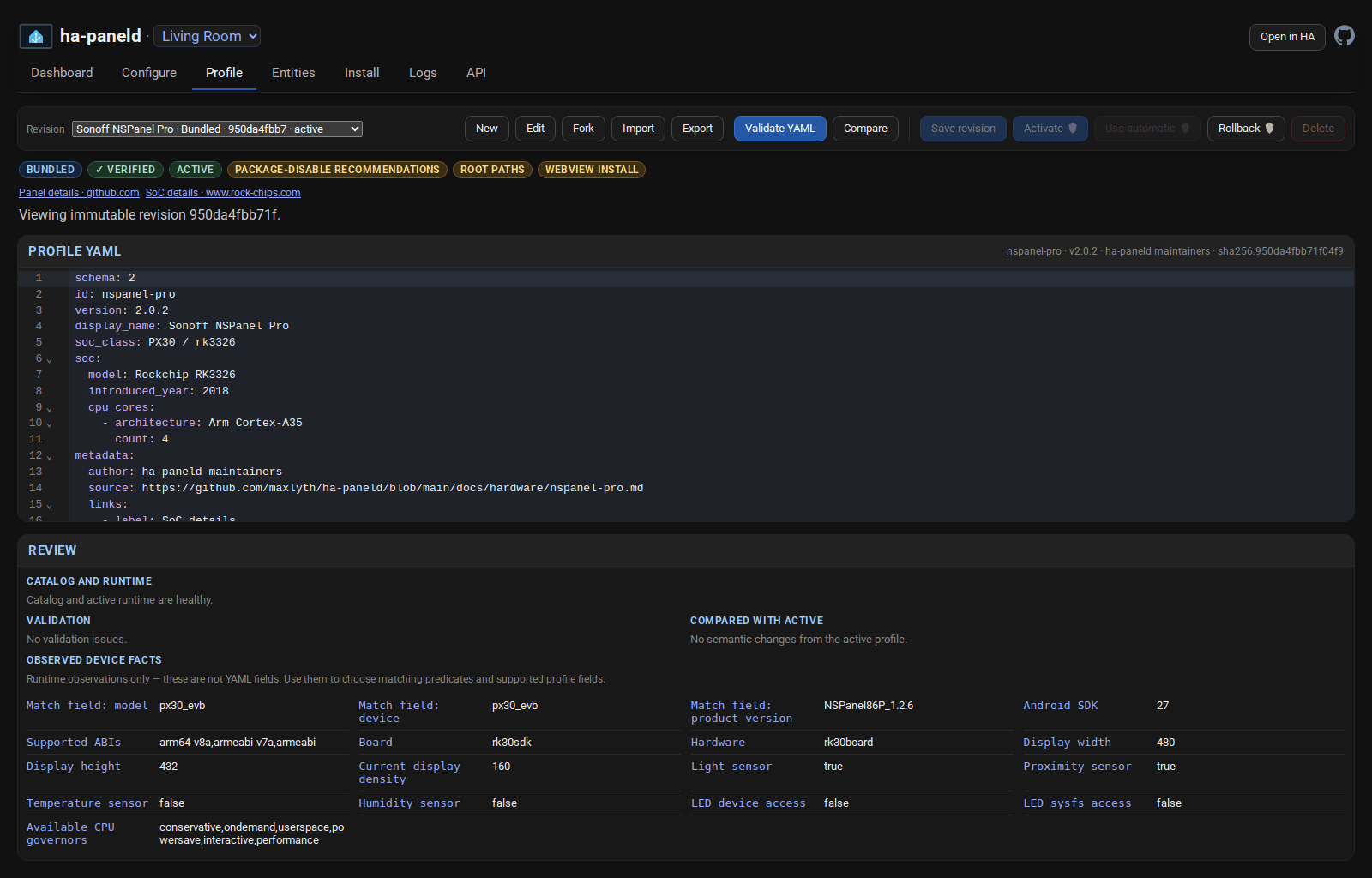
Panel profiles describe what is special about a model of Android wall panel: how ha-paneld recognises it, which compiled hardware drivers it may use, known display and sensor characteristics, and any firmware-dependent variants. Profiles are human-readable YAML files. They can be inspected, exported, edited, imported and activated from a running ha-paneld installation without rebuilding the Android app.
This page is the practical authoring guide. See the format and compatibility reference for the document model, testing and troubleshooting before activating hardware controls, and the sharing and contribution guide before publishing a profile. There is also a clearly separated catalogue of community profiles; those files are manual imports, not bundled support.
The profiles bundled with the app live in the ha-paneld repository under app/src/main/assets/device-profiles.
What a profile can do
Section titled “What a profile can do”A profile can select from drivers and transformations already supplied by ha-paneld and provide their typed parameters. It can describe hardware facts, matching rules, firmware variants, display recommendations, capability candidates, and the level of Android authority that may be useful on the panel.
A profile cannot add executable code, shell commands, helper-daemon verbs, kernel ioctls, native libraries or a new hardware protocol. If a panel needs a mechanism that is not listed by the profile editor or format reference, that mechanism must first be implemented and reviewed in ha-paneld itself. This boundary keeps an exchanged YAML file inspectable and prevents a profile from becoming an arbitrary root script.
Profiles also do not grant authority. A privileged driver remains unavailable unless its required live route succeeds. See Authority: standard Android and privileged routes.
Quick start without a development environment
Section titled “Quick start without a development environment”You need only a profile-capable ha-paneld installation and a web browser. The Profiles page includes a YAML editor with validation feedback; exporting to a separate text editor is optional. You do not need Android Studio, Gradle, the Android SDK or a repository checkout.
- Open
http://<panel-ip>:8888/profileson the same trusted network as the panel. - If ha-paneld already recognises the panel, export the exact active profile revision and use it as a reference. Bundled profiles are immutable, so the first edit creates a self-contained local fork rather than modifying the copy shipped with the app.
- If the panel uses Generic, download its passive device draft. The draft includes the panel fingerprint and explicit unknown/TODO values; it does not guess privileged hardware or run an active probe.
- Give the profile a stable lowercase ID and version, complete its provenance and compatibility metadata, and begin with exact matching rules. Use the example below and the format reference.
- Import the YAML on the Profiles page. Import and validation are preview-only: they do not save or activate anything.
- Read every validation message and compare the candidate with the active profile. Pay particular attention to fingerprint matching, drivers, hardware paths, new or removed Home Assistant entities, and authority requirements.
- Save the validated candidate. Saving creates an immutable, inactive local revision. It still does not change the running panel.
- Test it in stages using the testing checklist. Activate only while somebody can see and touch the panel if the profile changes screen, input, LED, relay, package or other privileged behaviour.
- Activation requires an explicit confirmation tied to the exact profile ID, revision and content hash. ha-paneld restarts its service so every controller receives the same resolved profile.
- After the restart, confirm that the Profiles page reports the expected revision as active, inspect capabilities and Home Assistant entities, and test rollback. If startup validation fails, ha-paneld returns to the last-known-good revision and reports the failed candidate as auto-rolled-back.
Keep the exported YAML as the exchangeable source. A screenshot of a green Profiles page is useful evidence, but it is not a substitute for the file, its provenance or the staged hardware results.
Examples
Section titled “Examples”The minimal-community.yaml example uses the public schema accepted by the Profiles page. It is teaching material, not a claim that the fictional hardware exists. It is a conservative, standard-Android starting point that enables no vendor protocol, root/helper path, relay, evdev input, update artifact, package desired state or provisioning recipe.
Import the example through Profiles, review the validation preview and save it only as an inactive local revision. Change the ID, provenance, exact fingerprint, tested firmware and limitations before using it as the basis for a real panel. An imported match is preview evidence only; local and community profiles are never selected automatically.
For complete production examples, export one of the immutable bundled profiles from a running panel, or read the bundled YAML files. Those profiles exercise the same schema but may select privileged compiled drivers and core-owned artifacts that should not be copied without hardware evidence.
The profile lifecycle
Section titled “The profile lifecycle”ha-paneld treats profile content as immutable revisions rather than an editable live settings object. This makes comparisons reproducible and prevents a changed upload from being activated under an earlier preview.
- Bundled: shipped with ha-paneld and immutable. A bundled profile can be exported or forked.
- Local inactive revision: imported or created on this panel, validated and saved, but not used by running controllers.
- Pending: the exact revision has been accepted for activation and the service is restarting.
- Active: the revision used to construct the current sensors, hardware controllers, UI capability model and Home Assistant discovery surface.
- Last-known-good: the previous proven selection retained as the recovery and manual rollback target after a new revision completes startup.
- Auto-rolled-back: a candidate that failed activation and was replaced automatically by the last-known-good revision.
Saving, activation and deletion all use revision hashes and generation checks. If another browser or administrator changed the catalogue after a page was opened, the stale operation is refused; refresh, compare again and act on the new state.
Deleting an inactive local revision does not change the active panel. An active or last-known-good revision must not be removed until another valid recovery path exists.
Use automatic returns a pinned panel to bundled fingerprint matching on the next controlled restart. Imported and community revisions never participate in that automatic choice; they remain available only for explicit pinned activation.
Starting from Generic
Section titled “Starting from Generic”Generic is the conservative fallback for an unrecognised panel. It uses ordinary Android capability checks and safe runtime probes, but it deliberately does not invent vendor hardware, evdev buttons, relays, radios, climate chips, update artifacts or package actions.
That makes Generic the right place to begin community profiling:
- Download the device draft from the Profiles page. It captures the exact build model, build device and product-version evidence available to ha-paneld, plus the latest bounded, sanitised passive report.
- Redact and review before sharing. The generated report is designed for support, but the author remains responsible for removing panel names, addresses, Home Assistant details, credentials and dashboard content.
- Add identity and provenance first. Use a stable lowercase ID with an author/organisation prefix, such as
org.example.wallpanel-x1, plus an initial profile version, author/source/licence information, a maturity level, the tested firmware range and known limitations. - Add narrow, exact fingerprint rules. A vendor model or product-version prefix is usually safer than a broad SoC alias such as
px30,rk3326,rk3566orrk3576, which unrelated panels may share. - Leave unknown capability sections absent or explicitly unknown. A filename, retail listing or kernel driver compiled into firmware is not proof that live hardware exists or that an Android app can reach it.
- Add one evidence-backed capability at a time, validate, compare and test it before continuing.
The draft is intentionally read-only and passive. Do not turn exploratory shell commands or one-off root experiments into profile fields. When a new active probe or driver is genuinely required, propose it as a bounded ha-paneld implementation with its own validation and tests.
Matching a panel safely
Section titled “Matching a panel safely”Matching is a safety decision, not just a convenience. A wrong match can select an unsuitable driver or claim capabilities that belong to another product using the same reference board.
Prefer exact product identity in this order:
- a vendor model or device codename unique to the product;
- an exact product-version format or tightly anchored prefix;
- a combination of independent build fields;
- a broad SoC/reference-platform alias only as a deliberate compatibility fallback.
Assign each exact group a higher branch priority than its broad fallback. ha-paneld compares the matched group priority first, then the profile-level priority; an exact bundled tie fails closed to Generic. Priorities reproduce deliberate branch order, but they are not a substitute for a narrow fingerprint.
Community and imported revisions never participate in automatic selection, even when their match is exact. Matching is preview evidence that helps the administrator decide whether the file describes this panel. A local revision can override bundled detection only through an explicit activation, after which the panel pins its exact profile ID, revision and hash. A later import therefore cannot change the running result implicitly.
Use a named core-owned strategy field for a supported difference within one hardware family, such as a product label or density rule. The format does not contain a general expression language or arbitrary variant patching. Proximity scale, polarity and binary/ranged behaviour are deliberately not profile strategies: the runtime learns them from live evidence. Use separate profiles when the available named strategies cannot describe a genuine acquisition, driver, privilege-boundary or recovery difference.
Authority: standard Android and privileged routes
Section titled “Authority: standard Android and privileged routes”Profiles describe candidate mechanisms; live probes decide whether the running panel can use them.
Standard Android
Section titled “Standard Android”Start here. Dashboard rendering, MQTT pairing and ordinary Android sensors, brightness, audio, navigation and the local web UI do not require root. A new profile should prove its identity and standard-Android behaviour before adding a privileged driver.
Exceptional shell fallback
Section titled “Exceptional shell fallback”Omit provisioning.access.shizuku unless the profile selects a concrete compiled capability whose authority contract explicitly supports that alternate route. Generic conveniences do not justify a profile recommendation. The declaration is guidance only and never installs or approves anything; the narrow setup and security boundary are documented in the Shizuku fallback section of the command-line install guide.
Vendor root or the ha-paneld helper
Section titled “Vendor root or the ha-paneld helper”A compiled driver may require a working vendor su route or ha-paneld’s separately installed root helper. Declaring that requirement does not make the route exist, install the helper or widen its allowlist. The helper accepts only compiled, bounded commands and authenticates its peer; a profile supplies validated parameters to those commands, never command text.
Do not recommend rooting a device that was supplied unrooted merely to satisfy a profile. Document the reduced feature set honestly. See Root access for the hardware side.
Updating an installed profile
Section titled “Updating an installed profile”Profile content versions and document schema versions solve different problems. Increment the profile version when the hardware knowledge or behaviour changes. The schema version changes only when ha-paneld changes the document language.
Before saving an update, compare it with the active revision and read the compatibility report. A ha-paneld update also revalidates installed profiles before use. A file that requires a newer core, an unavailable driver or an unsupported future schema remains installed but cannot become active; the current last-known-good profile continues to run.
Treat a change to matching, a privileged driver, a path, firmware variant, package desired state, recipe selection or core-owned update artifact as behaviourally significant even when the YAML diff is small. Repeat the relevant testing stages and bump the profile version.
Comments
Comments are kept in this page's discussion on GitHub, so loading them connects your browser to GitHub. This browser remembers the choice and loads comments on other pages when you scroll down to them.
Comment without a GitHub account